SAP Navigation — Introduction
Master the fundamentals of SAP navigation to work efficiently in the SAP system.

1. Logging into SAP
The first step in SAP navigation is logging into the system. When you start SAP, you'll see a login screen where you need to enter your credentials.
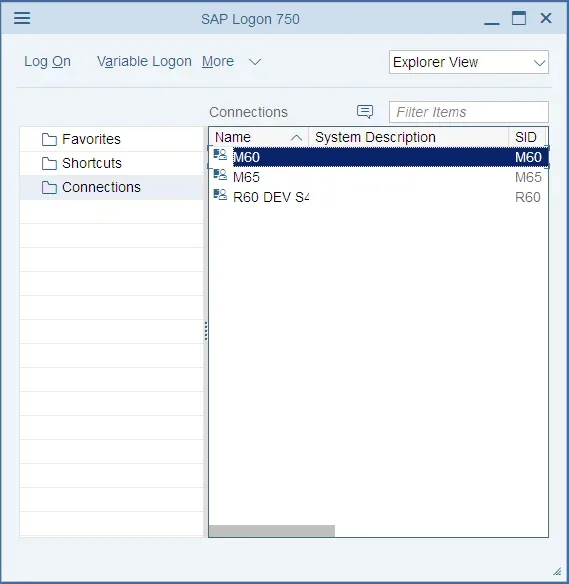
Enter the following details on the login screen:
- Client: The three-digit client number provided by your system administrator
- User: Your SAP user ID
- Password: Your SAP password (case-sensitive)
- Language: EN for English (default)
Press Enter or click the green tick to log in.
2. SAP Easy Access Screen
After successful login, you'll see the SAP Easy Access screen, which serves as your main navigation hub.
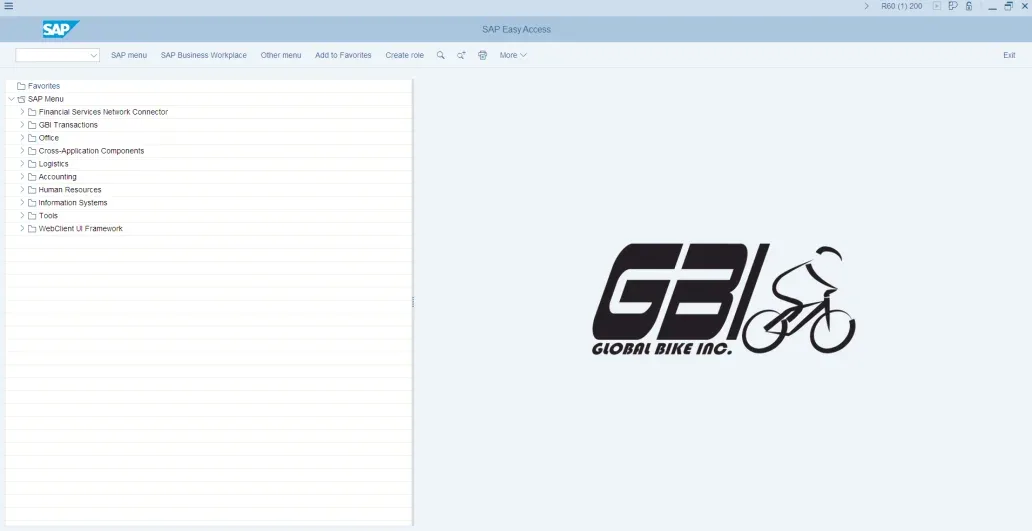
The SAP Easy Access screen consists of:
- Menu Bar: Top bar with System, Edit, Favorites, Extras, Help menus
- Standard Toolbar: Quick access icons for Save, Back, Exit, Cancel, etc.
- Command Field: The small box at the top-left to enter T-codes directly
- Navigation Tree: Left panel with a hierarchical menu of all SAP modules
- Favorites Folder: Your personal shortcuts at the top of the tree
3. Customizing the SAP Theme (Visual Design)
You can change the visual appearance of your SAP system by going to:
System ▶ User Profile ▶ Own Data ▶ Defaults ▶ Visual Design
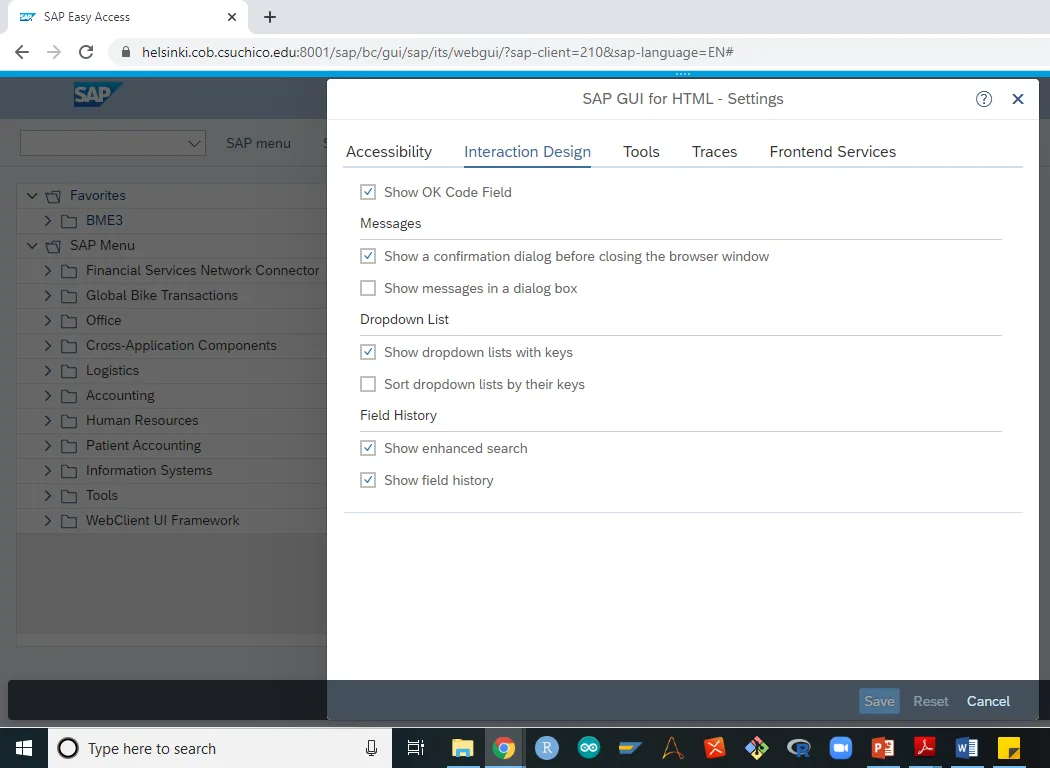
SAP GUI offers several themes to improve readability. Popular themes include SAP Belize (modern flat design) and Quartz. Once selected, save and re-login for changes to take effect.
4. Using Favorites
Favorites in SAP allow you to create shortcuts to frequently used transactions and reports.
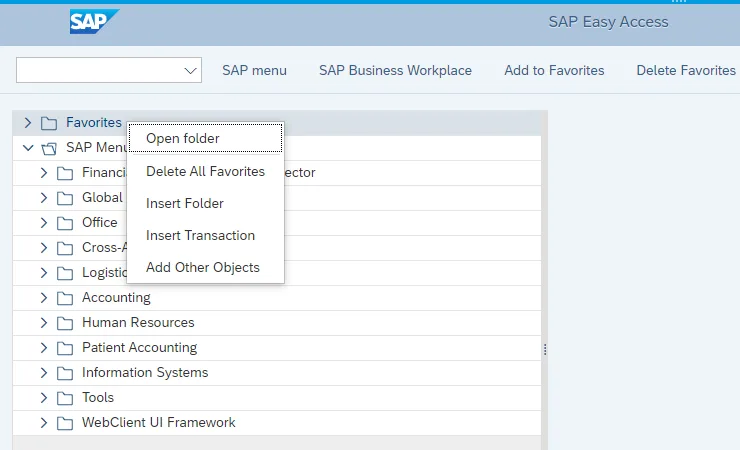
To add a transaction to Favorites:
- Right-click on the Favorites folder in the Easy Access menu
- Select Insert Transaction
- Enter the T-code (e.g., ME21N) and click OK
- You can also drag and drop transactions from the navigation tree into Favorites
5. Transaction Codes (T-Codes)
Transaction codes (T-codes) are the fastest way to navigate directly to specific functions in SAP.
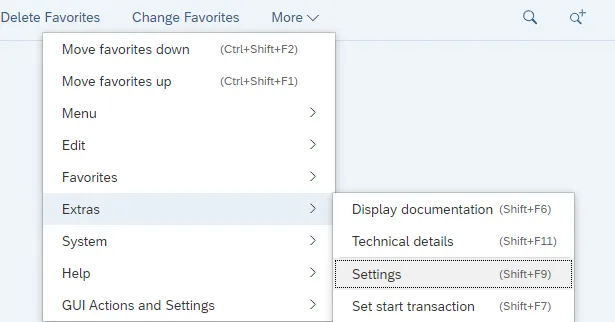
Type the T-code in the Command Field and press Enter. Use these prefixes for advanced navigation:
| T-Code | Function |
|---|---|
| /nXX01 | Close current transaction and open XX01 in same window |
| /oXX01 | Open XX01 in a new SAP session (new window) |
| /n | Return to main menu / cancel current transaction |
| /nex | Log out of SAP completely without saving |
| SE80 | ABAP Workbench |
6. User Settings and Preferences
Accessing User Settings:
Go to System ▶ User Profile ▶ Own Data
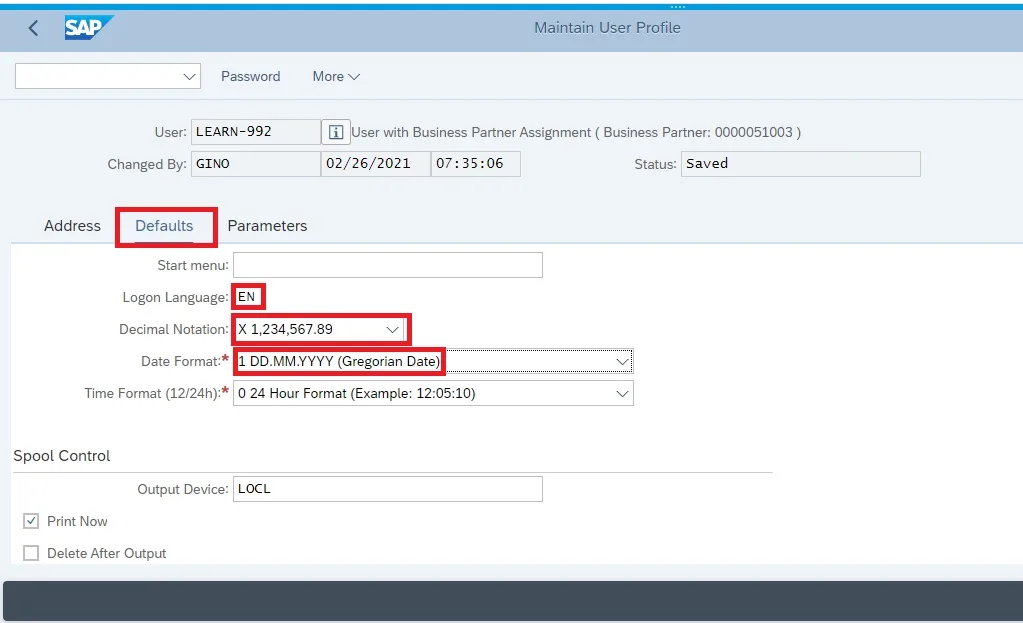
In the Own Data screen (T-code: SU3), you can configure:
- Address Tab: Your name, department, phone number
- Defaults Tab: Output device, decimal notation, date format, logon language
- Parameters Tab: Pre-fill field values (e.g., default company code, plant)
Save with Ctrl+S after making changes.
7. SAP Help System
SAP provides comprehensive help features to assist users in navigating and using the system effectively.
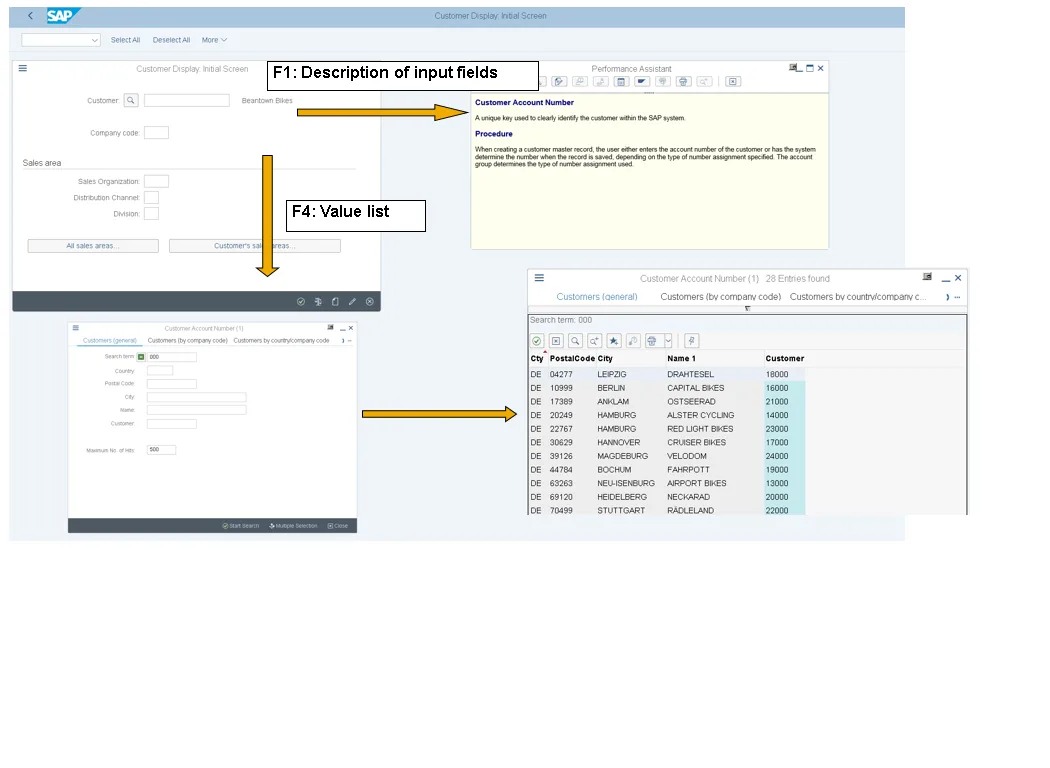
Access help in SAP using these methods:
- F1 key: Context-sensitive help for any field — explains what the field means
- F4 key: Possible values / Search help — shows a list of valid entries for a field
- Help menu: Application Help, SAP Library, and Glossary from the menu bar
- SAP Help Portal: help.sap.com — official online documentation
8. Logging Out of SAP
Always log out properly to free up your SAP licence and protect your account.
- Menu: System ▶ Log Off
- Transaction Code: Enter
/nexin the command field
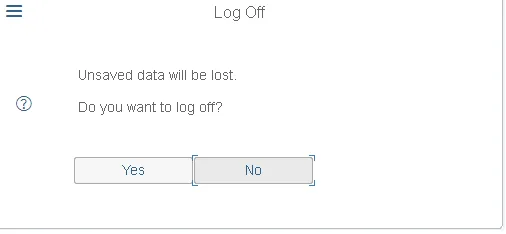
SAP will ask you to confirm before logging out. Any unsaved data will be lost, so always save your work before logging off.
Function Keys Quick Reference
- F3 — Back (go to previous screen)
- F5 — Overview / expand tree
- F8 — Execute / run a report
- Ctrl+S — Save
- Ctrl+F — Find in screen
- Enter — Confirm / execute action
SAP Fiori Navigation (S/4HANA)
In SAP S/4HANA, the Fiori Launchpad replaces the SAP GUI Easy Access menu for business users. It shows role-specific tiles (apps) on a home screen. Navigation is completely mouse/touch-based through a browser — no T-codes needed for daily business users.
However, ABAP developers and system administrators still use SAP GUI extensively. Learn both with our free SAP ABAP course and SAP Fiori SD course.